
Fill a scanned or non-fillable PDF with AI.
A page can look exactly like a form and still contain no fields you can click. PDFSight interprets the visible page, turns the result into an explicit field schema, and guides you from source document to completed PDF.
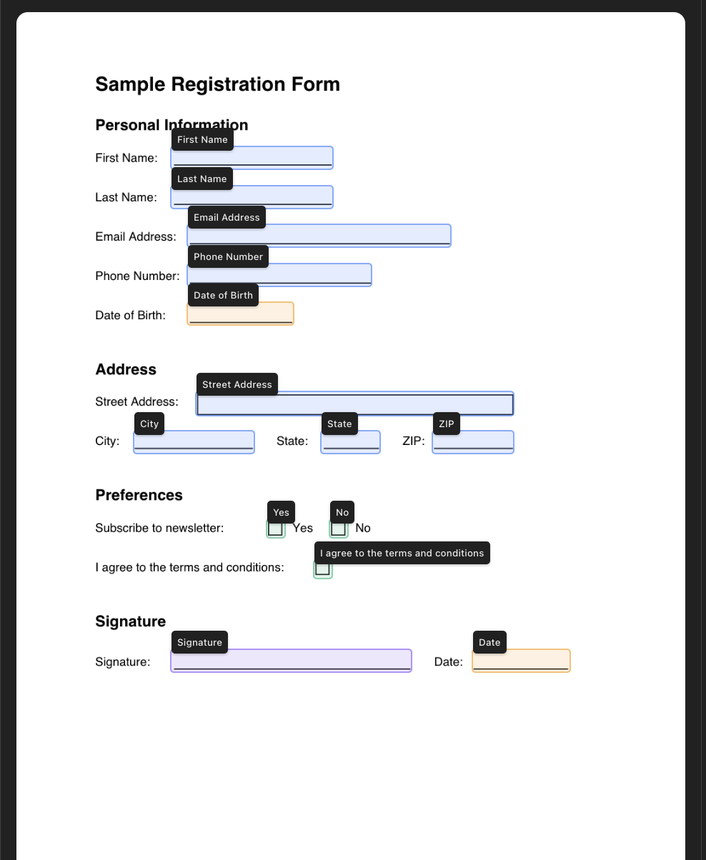
The boxes you see may only be pixels.
Interactive PDFs contain named controls and coordinates. A scan is usually one page image. A flat PDF may contain text and drawn lines, but no usable form controls. In either case, a conventional form filler has nothing structured to select.
The page is an image
Labels, checkboxes, and signature lines are visual content rather than interactive PDF objects.
The layout has no fields
Text and lines can be present in the file while the document still lacks named input controls.
An AcroForm already has structure
Existing field names, types, and rectangles can be read directly and do not need visual reconstruction.
From visible page to finished file.
Upload the source
Start with a scanned, image-based, flat, or otherwise non-interactive PDF.
Review the structure
PDFSight identifies expected text, checkbox, date, multiline, and signature inputs for review.
Answer what is missing
The assistant keeps collection tied to the registered document and asks for the values it needs.
Inspect and download
Application code fills a copy, renders the result, and provides a time-limited delivery link.
Use AI where the page is ambiguous. Use software to own the PDF.
The interpretation step proposes an explicit schema: field names, types, page numbers, and rectangles. PDFSight then owns field construction, workflow state, filling, preview, and temporary delivery. The model is one bounded capability—not the document system.
Visible PDF page
Visual interpretation identifies likely inputs where no embedded form structure exists.
Explicit field schema
Each proposed field has a type and page-relative geometry that can be reviewed and tested.
Deterministic PDF work
Application code constructs fields, applies values, renders previews, and manages delivery.
One safe fixture through the actual workflow.
These captures use a visibly synthetic Community Day volunteer form with example.test data. They show the source, detected structure, guided collection, and completed result—without presenting a staged dashboard as product evidence.
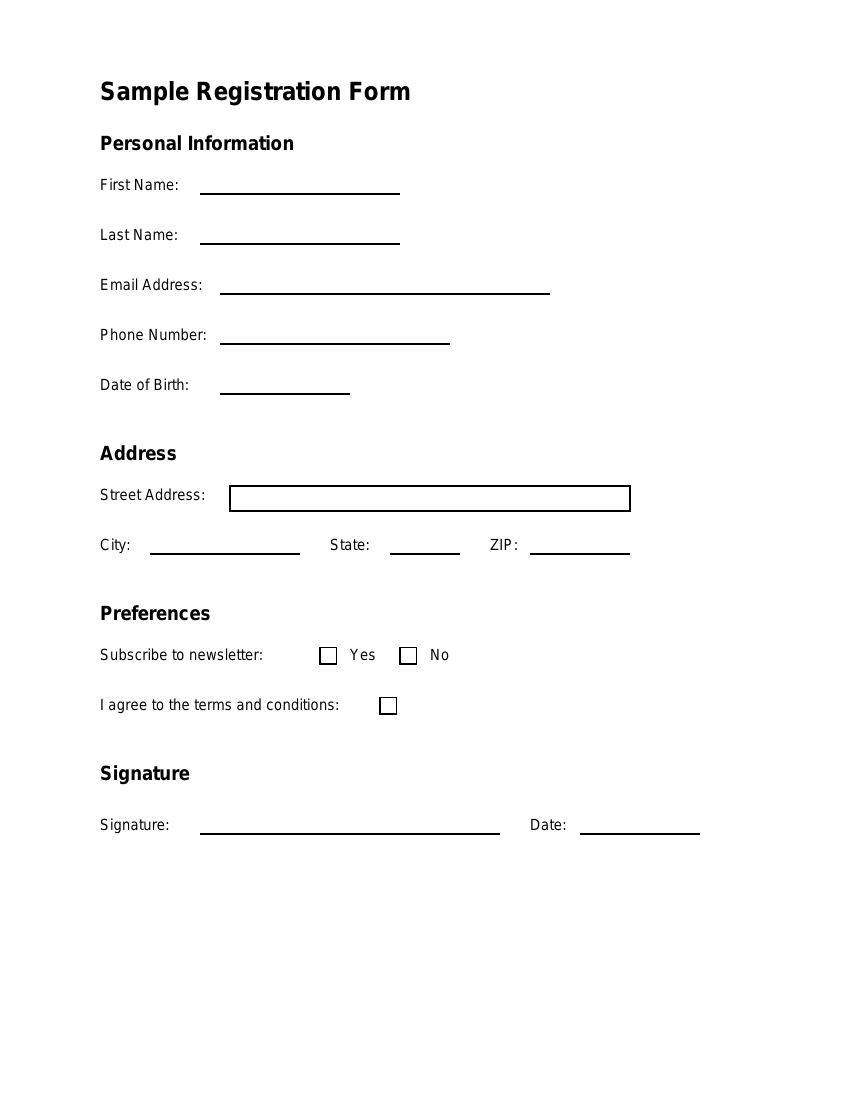
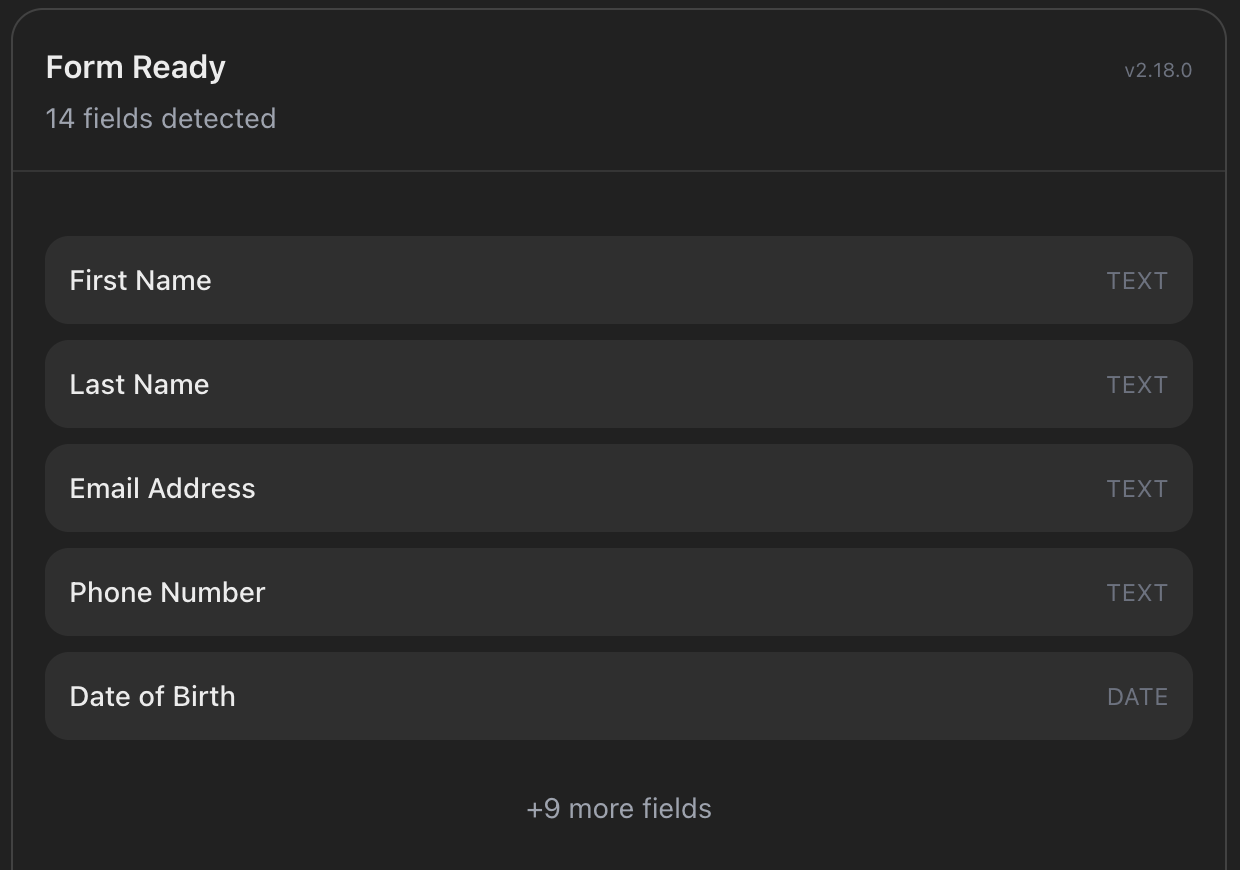
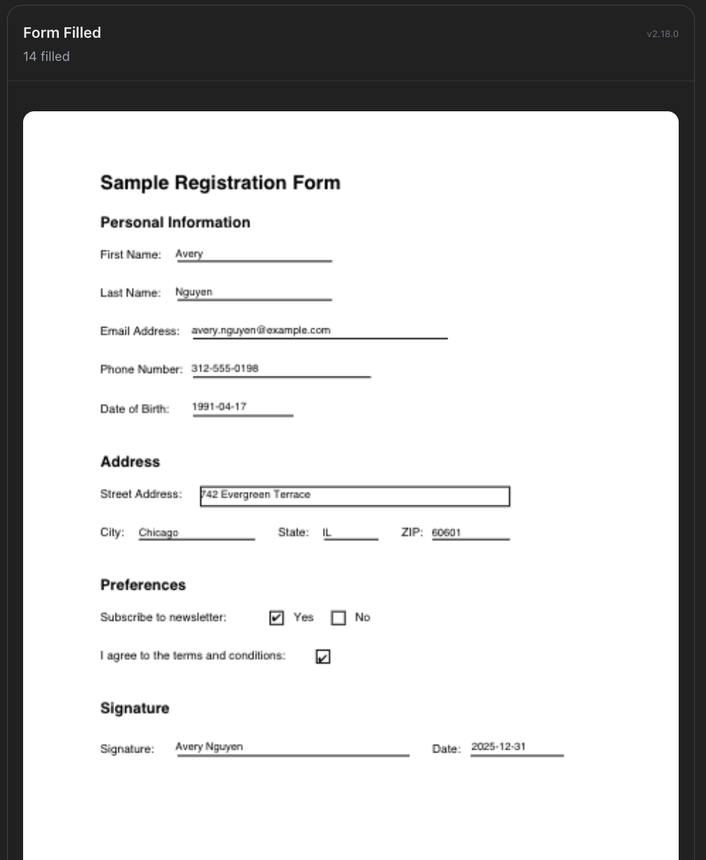
Detection is a proposal, not a promise.
Field detection depends on page quality, layout, legibility, and ambiguity. A faint scan, handwritten label, overlapping table, or unusual control can require review. PDFSight makes the proposed structure visible so it can be inspected before values are applied.
What to check before using the output
- Confirm each expected field exists and is associated with the right label.
- Check checkbox, date, multiline, and signature types rather than treating everything as text.
- Inspect page position and the final rendered PDF, especially on multi-page or rotated documents.
- Use the governing organization’s instructions for legal, medical, financial, or regulated forms.
PDFSight does not promise universal accuracy or completion. The current evaluation evidence—including positioning, latency, and cost—is published separately on the evaluation dashboard.
Bring the stubborn PDF.
Connect the public MCP endpoint in a compatible host and let PDFSight guide the document workflow.